
How to Transfer, Share, and AirDrop Files from iPhone to Android (Quick Share Web & App Guide)
Looking for an AirDrop equivalent between iPhone and Android? Learn how to transfer photos, 4K videos, and large files seamlessly using Quick Share Web and App.
Smartphones have become the center of our personal and professional lives. We capture high-resolution photos, record 4K videos, download PDFs, and share documents every single day. However, if you have ever tried to transfer files from an iPhone to an Android device (or vice versa), you know how frustrating the process can be.
If both people use iPhones, Apple's AirDrop makes sharing files instant and painless. But the moment an iPhone user tries to send a batch of full-resolution vacation photos or a heavy video file to a friend's Android device, AirDrop is out of the question. Apple’s walled garden leaves users searching for cumbersome workarounds:
- Instant Messaging Apps (WhatsApp, Telegram, WeChat): Often heavily compress images and videos, degrading quality and limiting file size.
- Email Attachments: Restricted by strict 25MB attachment limits.
- Cloud Storage Services (Google Drive, Dropbox, iCloud): Require account creation, slow uploads to remote cloud servers, and tedious link management.
Fortunately, there is a far better solution. Quick Share bridges the gap between iOS and Android, offering an AirDrop-like experience across all platforms. Whether you prefer a browser-based transfer without installing anything or a dedicated native mobile app, here is your complete guide on how to share, transfer, and Quick Share files from iPhone to Android.
Method 1: Use Quick Share Web (Instant Transfer, No App Installation Needed)
If you need to send files right away and don't want to install new software on either phone, Quick Share Web is the ultimate solution. Operating directly inside your web browser (Safari on iOS, Chrome on Android), Quick Share Web establishes a direct local peer-to-peer or encrypted cloud connection between devices.
Step-by-Step Guide: Transferring via Quick Share Web
Step 1: Open Quick Share Web on Both Devices
- On the iPhone, open Safari (or any browser) and go to the official Quick Share website.
- On the Android phone, open Chrome (or any browser) and navigate to the same website.
- Both devices will be assigned a temporary, friendly device icon and room code automatically.
Step 2: Select Files on Your iPhone
- On your iPhone, tap the Send / Select Files button.
- Choose from Photo Library, Take Photo or Video, or Choose Files (to send PDFs, documents, ZIP files, or audio).
- Select all the items you wish to transfer. Quick Share supports multi-file selection with zero quality compression!
Step 3: Connect & Send to Android
- Your iPhone screen will display nearby active web devices or generate a quick QR code / share link.
- Tap on the Android device's name, or scan the QR code using the Android phone's camera.
- On the Android device, a pop-up confirmation prompt will appear asking to receive the files.
- Tap Accept.
The transfer will begin immediately over local Wi-Fi or high-speed WebRTC data channels. Once complete, the Android user can download and save the original, uncompressed files directly to their device storage!
Method 2: Use Quick Share Mobile Apps (For High-Frequency & Power Users)
For users who frequently exchange files between iPhone and Android devices—such as family members, creative teams, or multi-device power users—downloading the official Quick Share App for iOS and Android unlocks maximum performance and background convenience.
Why Use the Quick Share Native App?
- Background Reception: Receive files even when your phone is locked or another app is open.
- System Share Sheet Integration: Share directly from the native Apple Photos app or Android Files app by tapping the standard "Share" menu.
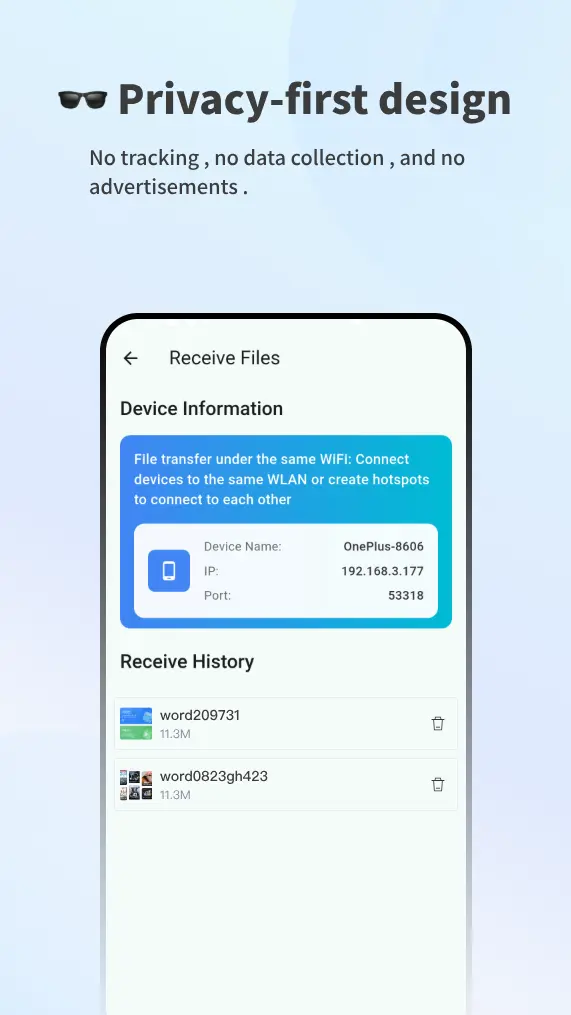
- Auto-Discovery: Automatically discover nearby paired devices on the same Wi-Fi network without opening web pages.
- Blazing Fast Speeds: Utilizes native Wi-Fi Direct and local socket hardware acceleration for maximum throughput.
Step-by-Step Guide: Transferring via Quick Share Native Apps
Step 1: Download the Apps
- iPhone / iPad: Download Quick Share from the Apple App Store.
- Android: Download Quick Share from the Google Play Store.
Step 2: Grant Local Network Permissions
When launching Quick Share on your iPhone for the first time, grant permission for Local Network and Photos. This enables the app to detect Android phones on your local Wi-Fi without needing internet data.
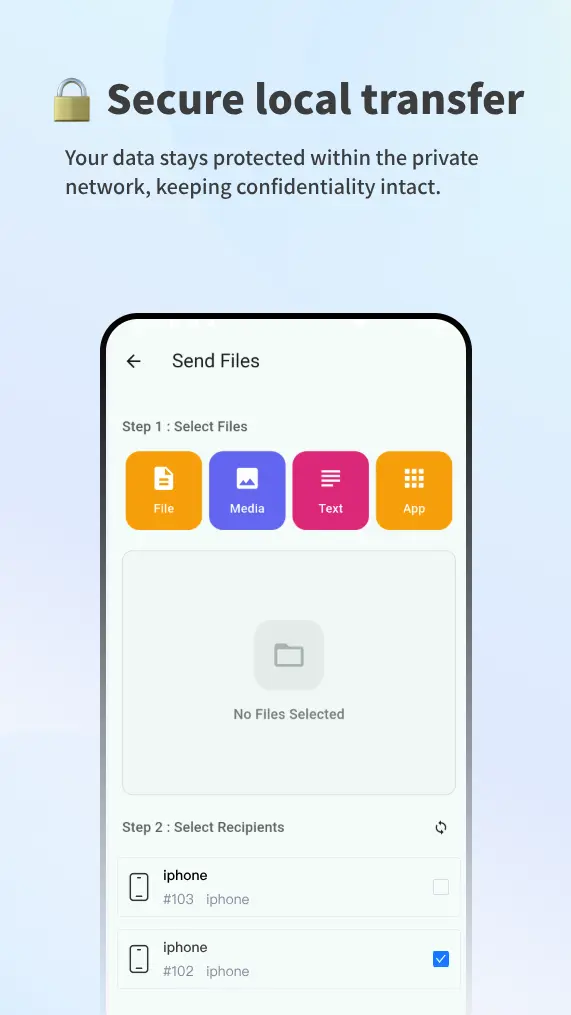
Step 3: Send Files from iPhone to Android
- Open the Quick Share app on your iPhone (or select photos in Apple Photos and tap Share -> Quick Share).
- Tap Send and pick your desired photos, videos, or documents.
- The app will display a list of nearby visible devices. Tap your friend's Android device.
- A sleek notification will appear on the Android phone. Tap Accept.
- The transfer executes in seconds, preserving full EXIF photo metadata, HDR video color profiles, and original file resolutions.
Comparison: Quick Share vs. Other Transfer Methods
To understand why Quick Share is the premier cross-platform file transfer tool, let’s look at how it compares to traditional sharing methods:
| Feature / Method | Apple AirDrop | Email / Messaging Apps | Cloud Storage (Drive/iCloud) | Quick Share (Web & App) |
|---|---|---|---|---|
| Cross-Platform (iOS to Android) | ❌ No (Apple only) | ✅ Yes | ✅ Yes | ✅ Yes (Universal) |
| No App Required Option | ❌ No | ❌ App required | ❌ App / Account required | ✅ Yes (Quick Share Web) |
| Zero Compression / Full Quality | ✅ Yes | ❌ Heavy Compression | ✅ Yes | ✅ Yes (Original Resolution) |
| No File Size Limits | ✅ Yes | ❌ Restricted (<25MB) | ❌ Restricted by storage quota | ✅ Unlimited Local Transfers |
| Transfer Speed | Very Fast | Slow | Medium (Requires upload & download) | Lightning Fast (P2P Local / WebRTC) |
| Privacy & Encryption | Encrypted | Stored on chat servers | Stored on cloud servers | End-to-End Encrypted / Local Only |
Pro Tips for Seamless iPhone to Android Sharing
- Keep Both Devices on the Same Wi-Fi Network: Connecting your iPhone and Android device to the same Wi-Fi router maximizes local transfer speeds and avoids using mobile data.
- Use Quick Share Web for One-Time Sharing: When sharing photos with a guest or coworker who doesn't have the Quick Share app installed, simply direct them to open the web URL or scan your device's QR code.
- Sharing Heavy 4K Videos: Quick Share handles large multi-gigabyte video files effortlessly. Unlike messaging apps that fail or freeze on large uploads, Quick Share streams the file chunk by chunk directly to the receiving device.
Conclusion: Break the Ecosystem Wall with Quick Share
You no longer need to compromise on photo quality, wrestle with cloud upload links, or wish AirDrop worked on Android. Quick Share delivers the ultimate universal file-sharing experience across iPhone, Android, Windows, Mac, and Linux.
Try it today and experience effortless cross-platform sharing: