
What Is Quick Share? A Beginner’s Guide to Sharing Files and Text
New to Quick Share? Learn how to transfer files nearby, share cloud download links, move text between devices, and get the app for your platform.

Quick Share helps you move files and text between phones, tablets, and computers. Send photos to your laptop over Wi-Fi, share a PDF through a download link, or open a note on another device without emailing yourself.
You can use it in a browser or get the app for Android, iPhone, iPad, Windows, macOS, or Linux. This guide covers quick-share.app, a separate product from Google’s Quick Share.
Start With What You Want to Share
You do not need to learn every tool before getting started. Pick the option that matches your task:
| What you want to do | Where to start |
|---|---|
| Send files between devices on the same local network | LAN Transfer or local transfer in the apps |
| Send a file to someone on another network | Cloud Transfer |
| Create a download URL for a document or other file | File to Link |
| Share an image, video, or PDF with a viewing page | Image to URL, Video to Link, or PDF to Link |
| Move a note, code snippet, or web address between devices | Share Text |
| Read a link from a QR code or screenshot | QR Code to Link |
Nearby devices? Use local transfer. Sending to someone elsewhere? Create a cloud link. Just a few lines? Use Share Text.
Transfer Files Nearby With LAN Transfer
Local transfer is useful when both devices are with you, such as a phone and laptop connected to your home router. Files travel directly between devices without being uploaded to cloud storage.
Here is the local sharing workflow in the iPhone app: choose content and a receiver under Send Files, then use Receive Files on the receiving device.
| Choose files and a receiver | Receive files on your device |
|---|---|
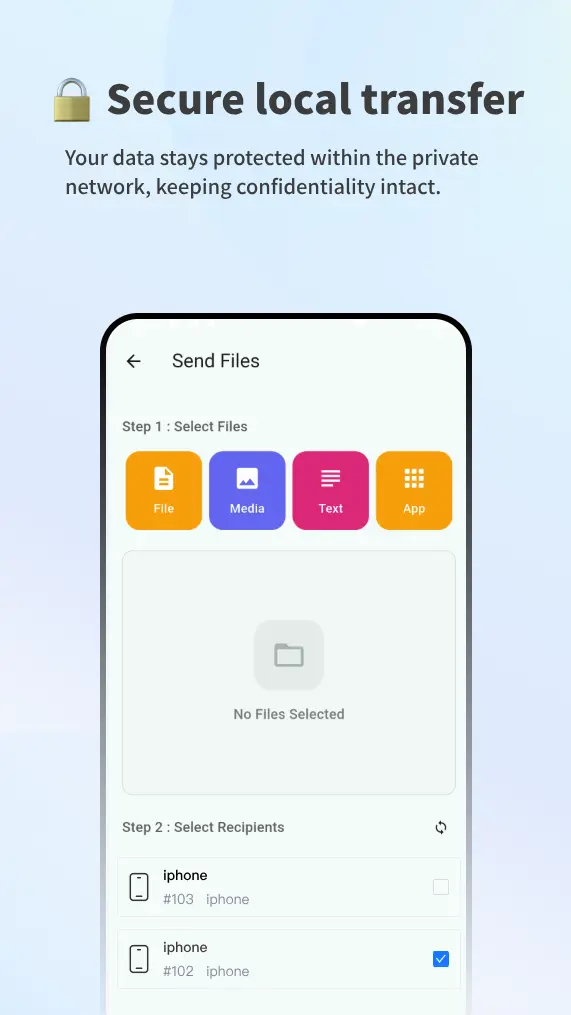 |
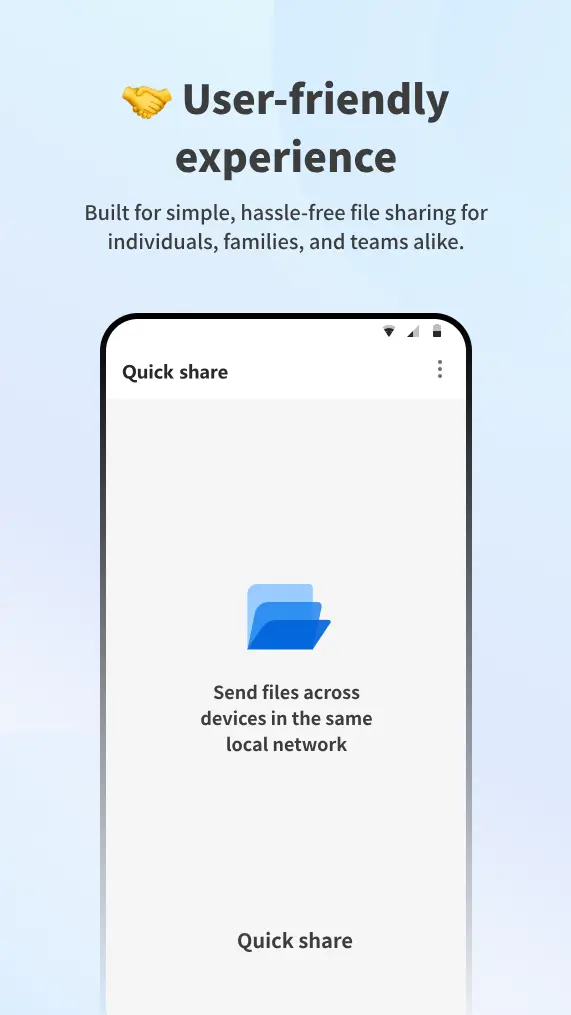 |
Make Your First Browser Transfer
- Connect both devices to the same local network. A computer connected by Ethernet can share the network with a phone on Wi-Fi.
- Open LAN Transfer in a compatible browser on both devices. An internet connection is needed to load the website and connect to its discovery service.
- Wait for the other device to appear in the device list.
- Choose your files, select the intended receiver, and press Send Files.
- Keep both pages open until the receiving device finishes downloading. Allow browser downloads if prompted.
Browser LAN Transfer is free, with no account or app installation required. For example, use Safari on an iPhone and a browser on Windows.
The steps above use the website on both devices; the screenshots show the native app’s separate workflow.
Local transfers do not use cloud file slots. Speed depends on your network and devices, and very large browser transfers can be limited by memory or storage. Keep both devices awake and mobile browsers in the foreground.
If the receiver does not appear, check local network permissions and whether guest Wi-Fi, a VPN, or a firewall is preventing communication. The device discovery troubleshooting guide explains common connection problems.
Share Files Remotely With Cloud Transfer
Cloud Transfer gives you a download link for someone on another network—or someone who will pick up the file later.
Upload once, send the URL, and let the recipient download before it expires. Your device can go offline after the upload finishes.
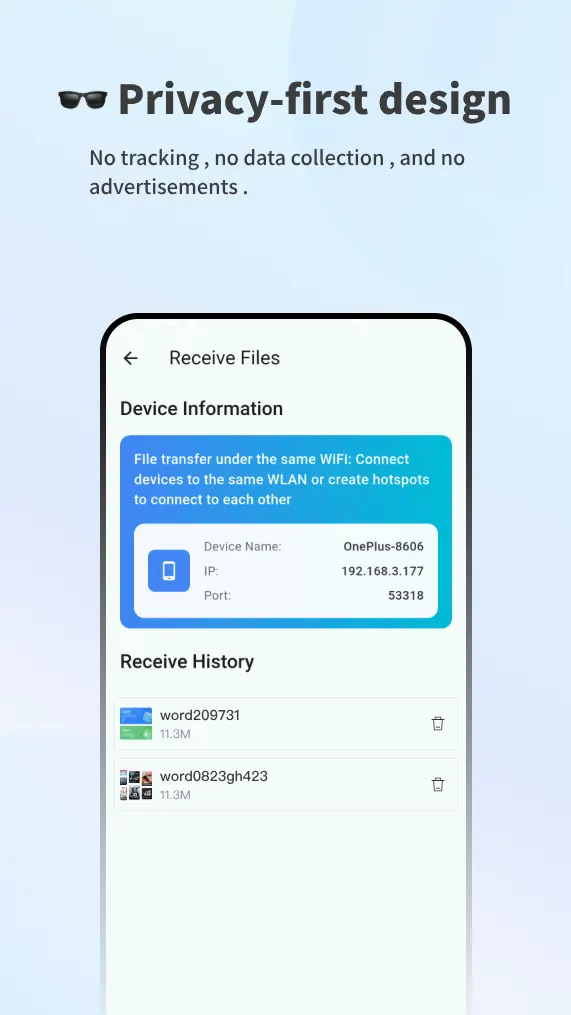
Cloud Transfer is also available in the mobile apps. These screens show file selection, storage allowance, and retention controls; the web steps follow below.
| Cloud Transfer on iPhone | Cloud Transfer on Android |
|---|---|
 |
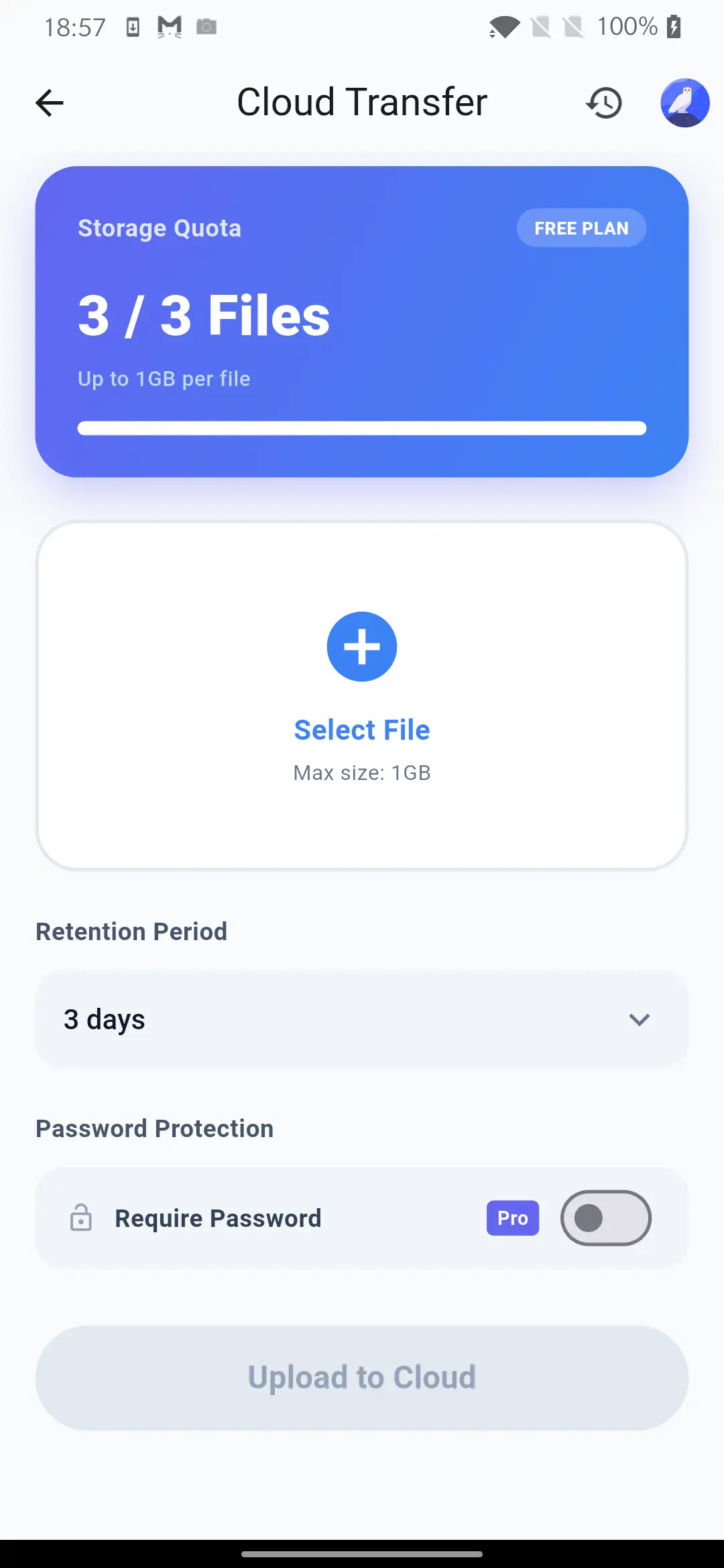 |
Create Your First Cloud Link
- Open Cloud Transfer and sign in with your Google account.
- Choose the file you want to share.
- Review its expiration period and add an optional access code if needed.
- Upload the file and copy the resulting link.
- Send the link through email or your preferred messaging app. If you added a code, send it separately.
Recipients do not need a Quick Share account. Protected links require the sender’s access code. You can copy links or delete uploads from your active file list.
Cloud links expire. Give your recipient enough time to download. Deleting an upload disables its link, but does not remove copies already downloaded.
Turn Files Into Links With Dedicated Sharing Tools
Quick Share also has focused tools for particular content types. They use cloud uploads, with a sharing experience suited to the file:
- File to Link: Upload a document, presentation, or another supported file and get a URL you can send instead of an attachment.
- Image to URL: Create an image sharing link. Recipients can preview supported images in their browser or download the original file.
- Video to Link: Share a video through a viewing page, with playback where the recipient’s browser supports the format and codec, plus an original-file download.
- PDF to Link: Let someone read a PDF online or download the original document. If the embedded preview is unavailable, they can open or download the PDF instead.
These are different entry points into the same file-sharing allowance, not separate storage accounts. Uploading a PDF and an image uses two active file slots across your account.
Share Text Without Making a File
Sometimes you only need to move a paragraph, a code snippet, an address, or a long URL. Share Text lets you do that without creating a document or emailing yourself.
- Paste or write your text, with an optional title.
- Choose how long to keep it and create a Share Text link.
- Open the link on another device and copy the text.
For example, paste a long URL on your computer, open the Share Text link on your phone, and copy the address there.
| Share Text access | Active links | Retention |
|---|---|---|
| No account | Up to 5 | 1 day |
| Free account | Up to 100 | Up to 1 month |
| Premium | Up to 1,000 | 1 year or permanent options |
Text links do not use cloud file slots. Anyone with the viewing link can read the text. For anonymous sharing, save the separate management link so you can manage or delete it later.
Read Links From QR Codes
QR Code to Link reads the content already stored inside a QR code. It is a QR reader, rather than a tool for turning a file into a QR code.
Use your camera for a printed code or one displayed on another screen. If the code is in a screenshot on your phone, select that image instead. The tool displays the decoded address before you choose to open or copy it; plain-text codes can also be copied.
QR decoding happens in your browser without sending the selected image or camera frames to a server. No account is required.
Get Quick Share for Your Devices
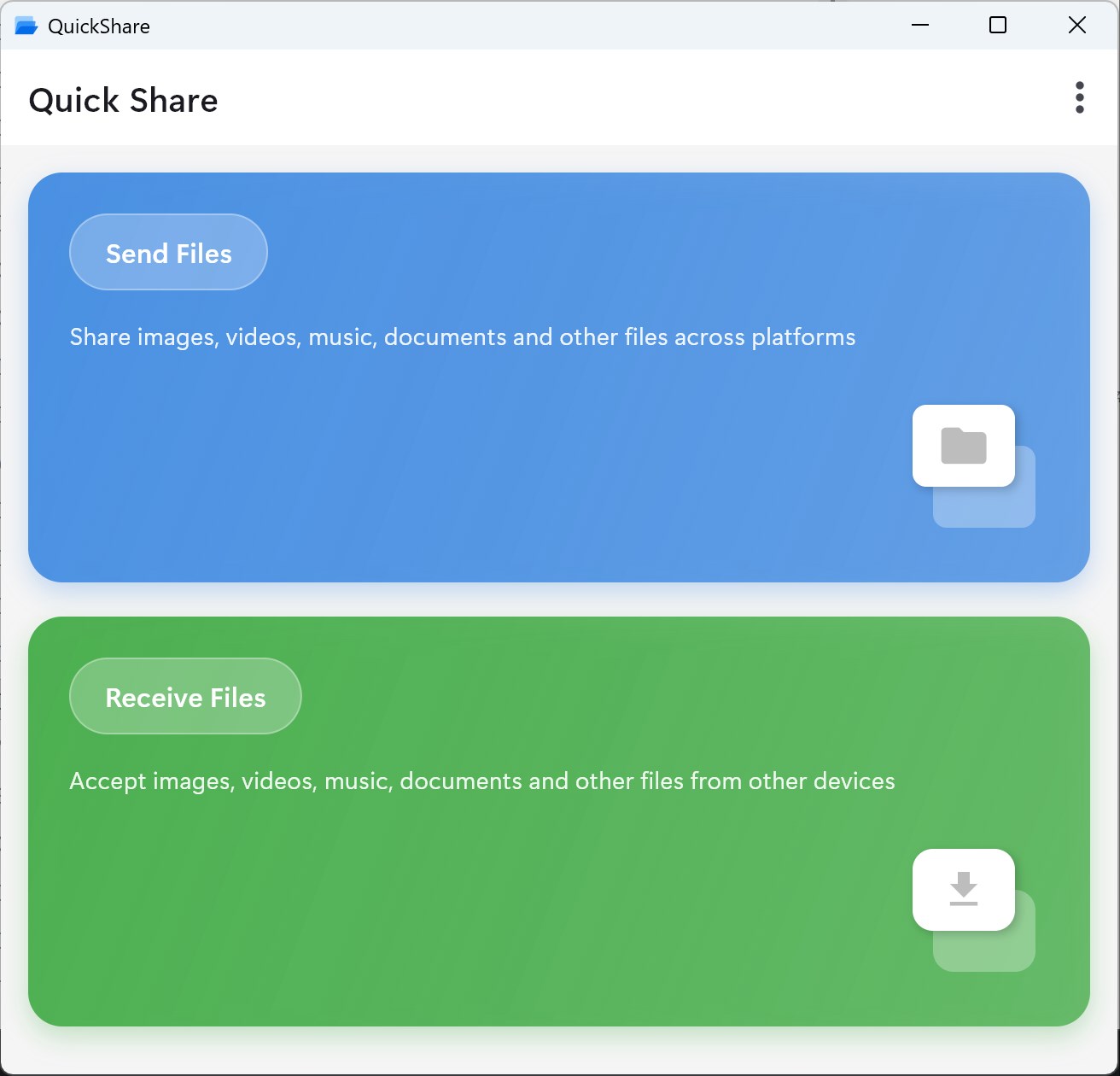
Start with the website if you want to try Quick Share without installing anything. For regular app use, choose your platform:
- Android: Download from Google Play.
- iPhone and iPad: Get the app on the App Store, or read the Quick Share for iPhone guide.
- Windows: Download from Microsoft Store, or see Quick Share for Windows.
- macOS: Use the Apple App Store listing and check compatibility for your Mac. The Apple release article introduces the Apple apps.
- Linux: Install from the Snap Store on a supported system.
- Web: Open quick-share.app in a compatible browser on your phone, tablet, or computer.
Available features, permissions, and subscription options can differ between the website and individual apps. Follow the instructions for the version you are using; a web tutorial does not describe every native app screen.
Free and Premium: What Do You Need?
You can begin with free browser LAN Transfer, anonymous Share Text, or a free account for cloud sharing.
For web cloud file sharing, the main limits are:
| File sharing allowance | Free | Premium |
|---|---|---|
| Active files | Up to 3 | Up to 20 |
| Size per file | Up to 1 GB | Up to 5 GB |
| Link expiration | Up to 7 days | Options up to 90 days |
| Optional access code | Included | Included |
Archive, executable, and script uploads require Premium. The dedicated file, image, video, and PDF link tools share these file limits.
Optional access-code protection is available for both Free and Premium web file links. Premium also increases Share Text limits. Open Pricing on the website for the current plan comparison, and check the relevant app’s purchase screen for its subscription details.
For a first transfer, choose the feature you need and start with its free allowance. You can decide whether you need higher limits after using it.
Additional Image and Video Tools
Quick Share also includes an Image Converter, Image Compressor, Video Converter, Video Compressor, and Video to MP3. These optional browser tools help you change formats, reduce file sizes, or extract audio before sharing. Available formats and processing capacity depend on your browser and device.
Ready to make your first share? Open LAN Transfer if both devices are on your network, Cloud Transfer if the recipient needs a download link, or Share Text if you just want to move a few lines of text.