
Quick Share for iOS
Quick Share for iPhone
Move photos and files between your iPhone and other devices. Share nearby over Wi-Fi, or send a cloud link across networks.
For iPhone with iOS 13.0 or later. Also available for iPad.
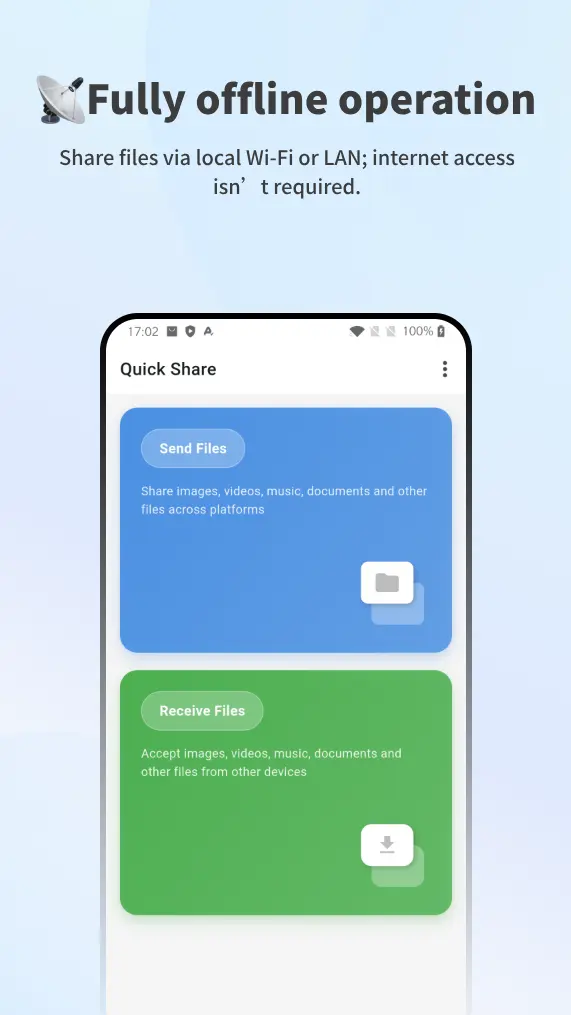
Local transfer
Your files. Your nearby devices.
Send photos, videos, documents, folders and text directly over your local network. Nearby devices appear automatically.
Connect your devices
Join the same Wi-Fi network. Open Quick Share on both devices and allow local network access when prompted.
Choose what to send
Open Send Files on your iPhone, select your content and choose the receiving device.
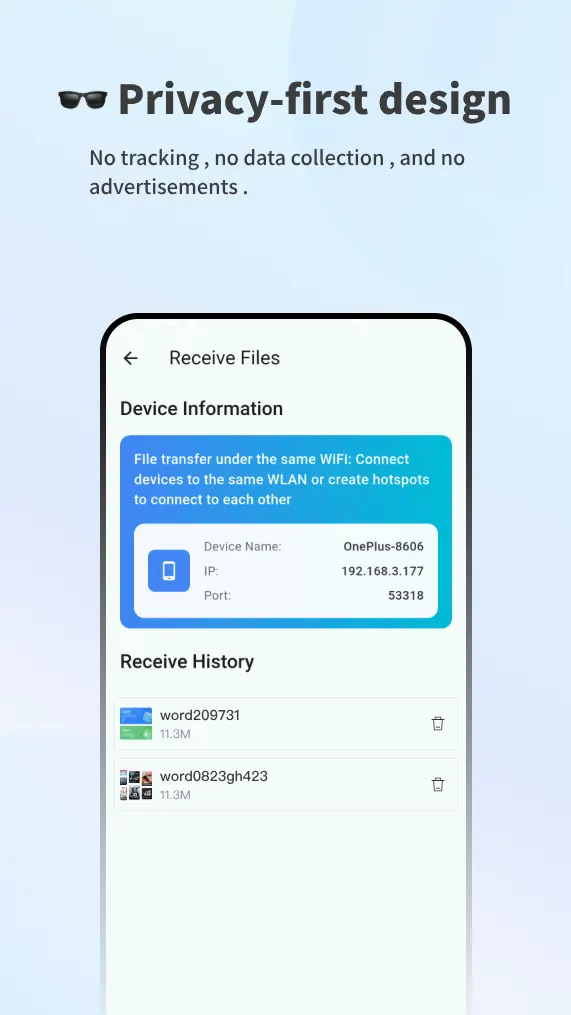
Receive your files
Open Receive Files on the other device. Keep both apps open until the transfer finishes.
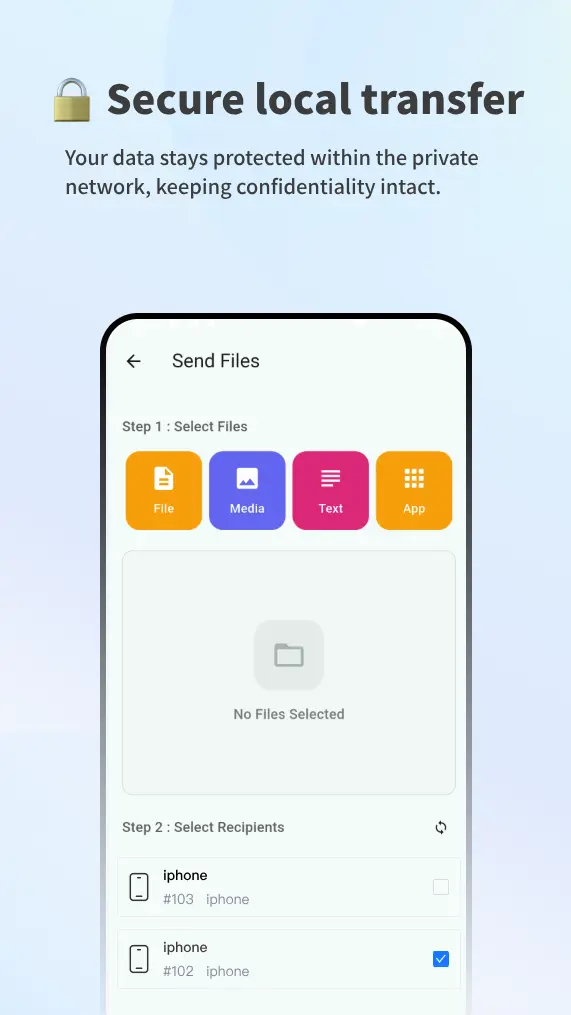
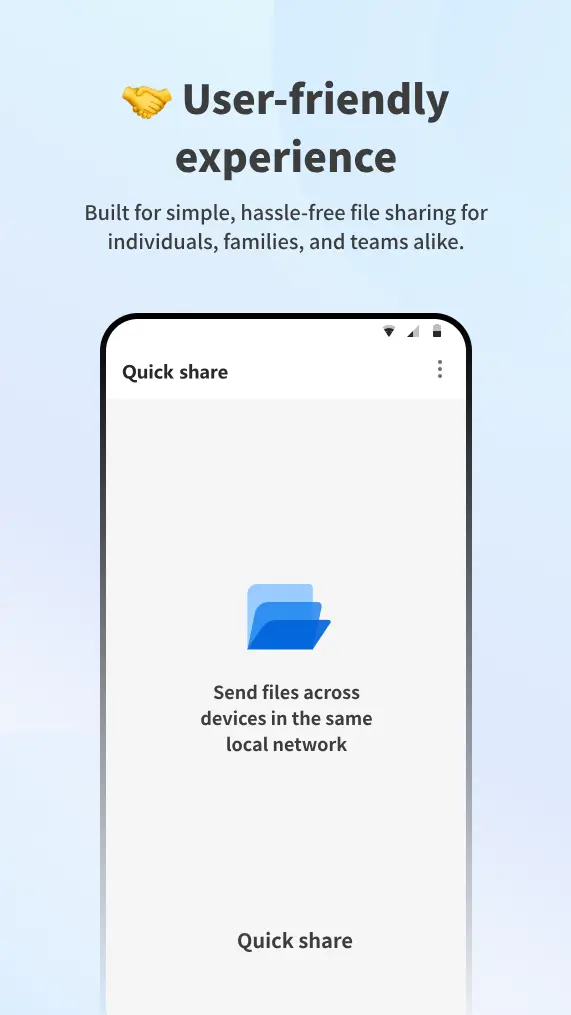
Drag a card or tap to switch views
Cloud Transfer
A file link for the longer distance.
Upload a file and send its link when your devices are on different networks. Recipients can download later in a browser.
- Choose the file
- Cloud Transfer uploads the file you select so it can be shared beyond your local network.
- Set the sharing period
- Choose from the retention options available in the app. Cloud links are temporary.
- Send the link
- Paste the URL into a message or email. Check the app for your quota and available Premium options.
The browser option
iPhone to Windows, through Safari.
For a transfer without installing an app, use the Quick Share website on both devices. This is a separate browser-to-browser workflow.
Open LAN Transfer
Connect your iPhone and computer to the same local network, then open LAN Transfer in Safari and your computer’s browser.
Select your receiver
Choose photos or files on your iPhone, select the matching computer and send. You can also send in the other direction.
Save the download
Allow downloads when asked on the receiving device and wait for the transfer to complete.
Quick Share for iPhone FAQ
Is Quick Share available for iPhone?
Yes. Download Quick Share File Transfer from the App Store using the link on this page. You can also use the Quick Share website in Safari.
Can I send files from iPhone to Windows?
Yes. For the browser option, open LAN Transfer in Safari on your iPhone and in a browser on Windows. Connect both devices to the same local network, choose your files and select the receiver.
Do local transfers upload my files to the cloud?
Local transfers send files directly between devices on your network. Cloud Transfer is a separate option that uploads the file you select to create a sharing link.
What if my devices cannot find each other?
Check that both devices are on the same local network and that local network access is allowed. Guest Wi-Fi can isolate devices. Keep the receiving app or browser open and check whether a VPN or firewall is blocking the connection.
Do I need the app on both devices for browser transfer?
No. The browser workflow uses the LAN Transfer page on both devices. Follow the app’s Send Files and Receive Files workflow when using the native apps.
Does sharing work across different networks?
Use Cloud Transfer to create a download link when the sender and recipient are on different networks. Local transfer requires devices on the same local network.
Get the iPhone app
Quick Share, ready on your iPhone.
Keep local file sharing and cloud links together in one app.
Download on the App StoreFree to download with in-app purchases. See the App Store for current details.
Read the iOS privacy policy